Creating a Custom HTML No Internet Screen
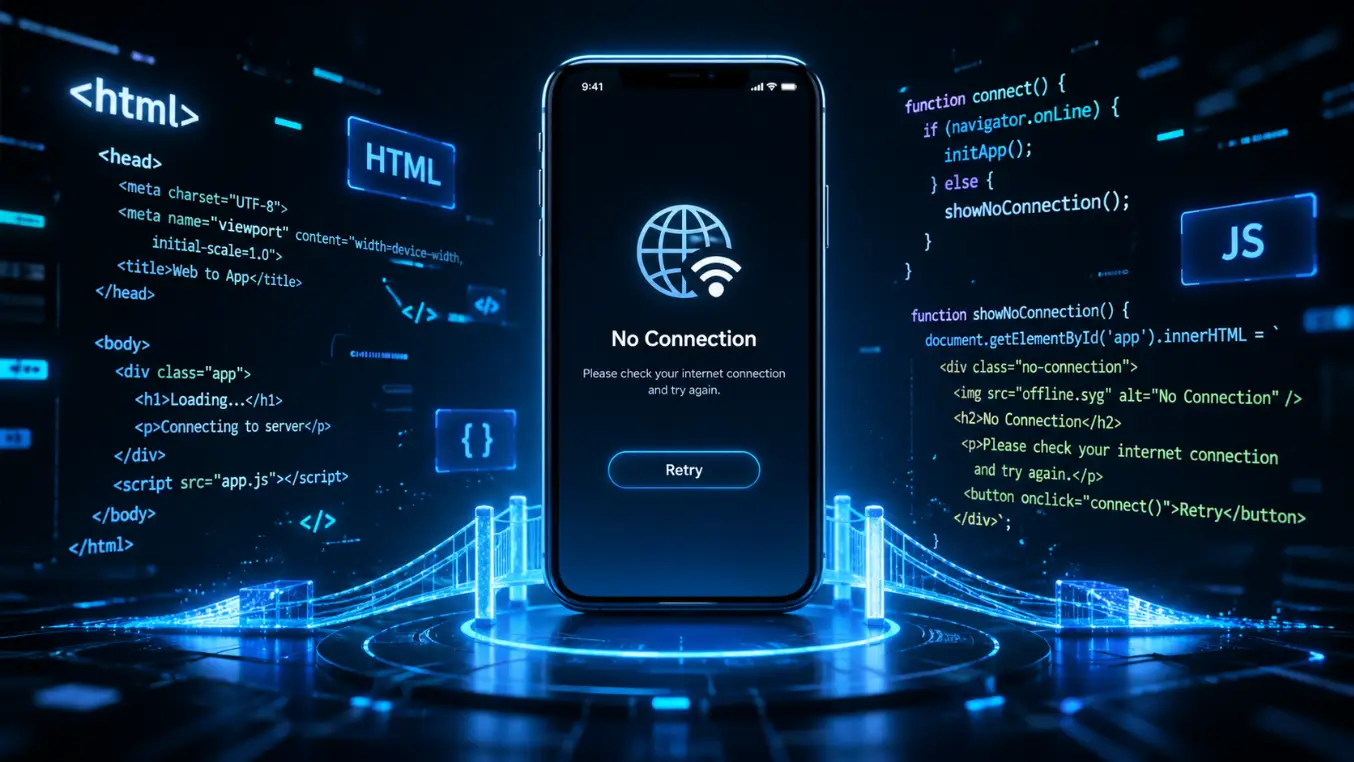
Welcome to the Web To App converter! If you want to design your own "No Internet" or "Error" page, you can easily do so using custom HTML. This allows you to match your app's exact branding, colors, and layout.
This guide will show you how to write a custom HTML screen, display dynamic error information, and add a working "Retry" button.
1. Dynamic Error Variables
When an error occurs (like no internet, or a page failing to load), the app can pass the exact error details into your HTML.
You can use the following placeholders anywhere in your HTML. The app will automatically replace them with the real error details before showing the screen:
{{ERROR_CODE}}— The numeric error code (e.g.,-2).{{ERROR_DESCRIPTION}}— A short text description of the error (e.g.,net::ERR_INTERNET_DISCONNECTED).
Example:
<p>Something went wrong!</p>
<p>Error Code: {{ERROR_CODE}}</p>
<p>Details: {{ERROR_DESCRIPTION}}</p>
2. Adding a "Retry" Button
You probably want users to be able to reload the page once their connection is back. To do this, you need to tell the native app to try loading the webpage again.
Our app injects a Javascript interface called window.Native. You can send a RELOAD action to the web bridge.
The Retry Script
Add this script to the bottom of your HTML <body>. It ensures the native app bridge is ready, and provides a simple retry() function you can attach to any button.
<script>
    // 1. Helper to wait until the app's native bridge is ready
    if (typeof window.waitForNative !== 'function') {
        window.waitForNative = async function (timeout = 1500, interval = 50) {
            if (window.Native) return true;
            return new Promise((resolve) => {
                const startTime = Date.now();
                const check = () => {
                    if (window.Native) resolve(true);
                    else if (Date.now() - startTime >= timeout) resolve(false);
                    else setTimeout(check, interval);
                };
                setTimeout(check, interval);
            });
        };
    }

    // 2. The function to call when the user clicks "Retry"
    async function retry() {
        const btn = document.getElementById('retry_btn');
        const originalText = btn ? btn.innerText : 'Retry';

        if (btn) {
            btn.disabled = true;
            btn.innerText = 'Retrying...';
        }

        const isReady = await window.waitForNative(2000);
        if (!isReady) {
            console.warn('Native bridge not ready');
            if (btn) {
                btn.disabled = false;
                btn.innerText = originalText;
            }
            return;
        }

        // Send the RELOAD command to the app
        window.Native.call('web', { action: 'RELOAD', payload: null });

        // Reset the button after 3 seconds if the reload takes time
        setTimeout(() => {
            if (btn) {
                btn.disabled = false;
                btn.innerText = originalText;
            }
        }, 3000);
    }
</script>
Then, just create a button in your HTML that calls the retry() function:
<button id="retry_btn" onclick="retry()">Try Again</button>3. Full Example Template
Here is a complete, copy-pasteable example of a clean, responsive "No Internet" screen. It includes the dynamic error variables and a working retry button.
<!DOCTYPE html>
<html>
<head>
    <meta name="viewport" content="width=device-width, initial-scale=1.0">
    <style>
        body {
            font-family: -apple-system, BlinkMacSystemFont, "Segoe UI", Roboto, sans-serif;
            display: flex; flex-direction: column; align-items: center; justify-content: center;
            height: 100vh; margin: 0; text-align: center;
            background-color: #f8fafc; color: #1e293b;
        }
        h1 { font-size: 24px; margin-bottom: 8px; font-weight: bold; }
        p { color: #64748b; margin-bottom: 24px; padding: 0 20px; line-height: 1.5; }
        .error-details { font-size: 14px; color: #94a3b8; margin-bottom: 32px; font-family: monospace; }
        button {
            padding: 14px 32px; background: #2563eb; color: white;
            border: none; border-radius: 12px; font-size: 16px; font-weight: bold;
            cursor: pointer; box-shadow: 0 4px 6px rgba(37, 99, 235, 0.2);
        }
        button:disabled { opacity: 0.7; cursor: not-allowed; }
    </style>
</head>
<body>
    <h1>Whoops! No Internet</h1>
    <p>Please check your network settings and try again.</p>

    <div class="error-details">
        {{ERROR_DESCRIPTION}} ({{ERROR_CODE}})
    </div>

    <button id="retry_btn" onclick="retry()">Try Again</button>

    <script>
        if (typeof window.waitForNative !== 'function') {
            window.waitForNative = async function (timeout = 1500, interval = 50) {
                if (window.Native) return true;
                return new Promise((resolve) => {
                    const startTime = Date.now();
                    const check = () => {
                        if (window.Native) resolve(true);
                        else if (Date.now() - startTime >= timeout) resolve(false);
                        else setTimeout(check, interval);
                    };
                    setTimeout(check, interval);
                });
            };
        }

        async function retry() {
            const btn = document.getElementById('retry_btn');
            const originalText = btn ? btn.innerText : 'Try Again';
            if (btn) {
                btn.disabled = true;
                btn.innerText = 'Retrying...';
            }
            const isReady = await window.waitForNative(2000);
            if (!isReady) {
                if (btn) {
                    btn.disabled = false;
                    btn.innerText = originalText;
                }
                return;
            }

            // Trigger app reload
            window.Native.call('web', { action: 'RELOAD', payload: null });

            setTimeout(() => {
                if (btn) {
                    btn.disabled = false;
                    btn.innerText = originalText;
                }
            }, 3000);
        }
    </script>
</body>
</html>
Summary
- Use
{{ERROR_CODE}}and{{ERROR_DESCRIPTION}}for dynamic error text. - Add the
waitForNativeJavascript snippet to ensure app communication is ready. - Call
window.Native.call('web', { action: 'RELOAD', payload: null })to trigger the page reload.
Ready to start?
Convert your website into an Android app
Install WebInto.app and build your APK in minutes. No coding required.