PWA vs Native App: Why You Should Convert Your PWA to an Android App
Progressive Web Apps (PWAs) were supposed to close the gap between web and mobile. And they did — partially. But in 2026, if you have a PWA and you're not also publishing a native Android app, you're leaving serious reach and engagement on the table.
This article breaks down the real limitations of PWAs on Android, why native apps still win in several key areas, and how you can convert your existing PWA to a full Android app in under 10 minutes — without rewriting a line of code.
What Is a PWA, and What Does It Actually Do?
A Progressive Web App is a website that uses service workers and a manifest.json to behave like a native app. When a user visits your PWA on Chrome for Android, they can:
- Add it to their home screen (A2HS)
- Access it offline via cached resources
- Receive some types of notifications (limited)
This sounds promising. But the reality on Android is more nuanced.
The Real Limitations of PWAs on Android in 2026
1. No Google Play Store Presence
This is the biggest one. PWAs cannot be submitted to the Google Play Store in their standard form. You need either a Trusted Web Activity (TWA) wrapper or a proper native shell — which is exactly what WebInto.app creates for you.
Without a Play Store listing, you miss out on:
- 3+ billion Android users who discover apps through Play Store search
- Play Store SEO — a massive, underutilized organic traffic channel
- Trust signals — users trust Play Store installs more than "Add to Home Screen" prompts
2. Push Notifications Are Unreliable
PWA push notifications on Android are delivered via Chrome. This means:
- The user must have Chrome installed (most do, but not all)
- Chrome must be allowed to send notifications (many users have blocked this)
- Notifications may not appear if Chrome is force-stopped
Native app push notifications, by contrast, go through Google's FCM (Firebase Cloud Messaging) — the same channel used by WhatsApp, Gmail, and every other major app. They are dramatically more reliable.
3. No Access to Native Android APIs
PWAs running in Chrome cannot access:
- Bluetooth
- NFC
- Contact list
- Call logs
- Background location
A native Android WebView shell (like the one WebInto.app builds) can request and use all of these permissions through the Android permission system.
4. "Add to Home Screen" Has Terrible Conversion
Studies show that less than 5% of users who see an A2HS prompt actually tap it. Compare that to Play Store install rates — a store listing with good screenshots and reviews converts far better because users understand what they're installing.
5. No Splash Screen Control
PWA splash screens on Android are auto-generated from the manifest.json values — you get limited control over the animation, transition, and branding. WebInto.app lets you design a fully custom branded splash screen with your exact colors, logo, and background.
PWA vs Native App: Feature Comparison
| Feature | PWA (Android Chrome) | Native App (WebInto.app) |
|---|---|---|
| Google Play Store | ❌ Not directly | ✅ Yes |
| Push Notifications | ⚠️ Unreliable | ✅ FCM — highly reliable |
| Offline Support | ✅ Via Service Worker | ✅ Via WebView cache |
| Home Screen Icon | ✅ (low install rate) | ✅ (Play Store install) |
| Custom Splash Screen | ⚠️ Limited | ✅ Fully custom |
| Bottom Navigation Bar | ❌ | ✅ Native |
| Hardware Back Button | ⚠️ Inconsistent | ✅ Proper navigation stack |
| CSS/JS Injection | ❌ | ✅ |
| Dark Mode (System) | ⚠️ Depends on theme | ✅ |
| Background Sync | ✅ | ✅ |
| App Store Discovery | ❌ | ✅ |
How to Convert Your PWA to a Native Android App
The good news: your PWA is already the best possible foundation for a native Android app. Because WebInto.app wraps your existing URL in a native WebView, your service workers, offline caching, and manifest.json keep working exactly as they do today — you just get a native shell around them.
Step 1: Identify Your PWA's URL
Your PWA is already hosted somewhere — grab the URL. If you're running it locally, deploy it first (Netlify and Vercel both have generous free tiers that take under 5 minutes to set up).
Step 2: Open WebInto.app and Enter the URL
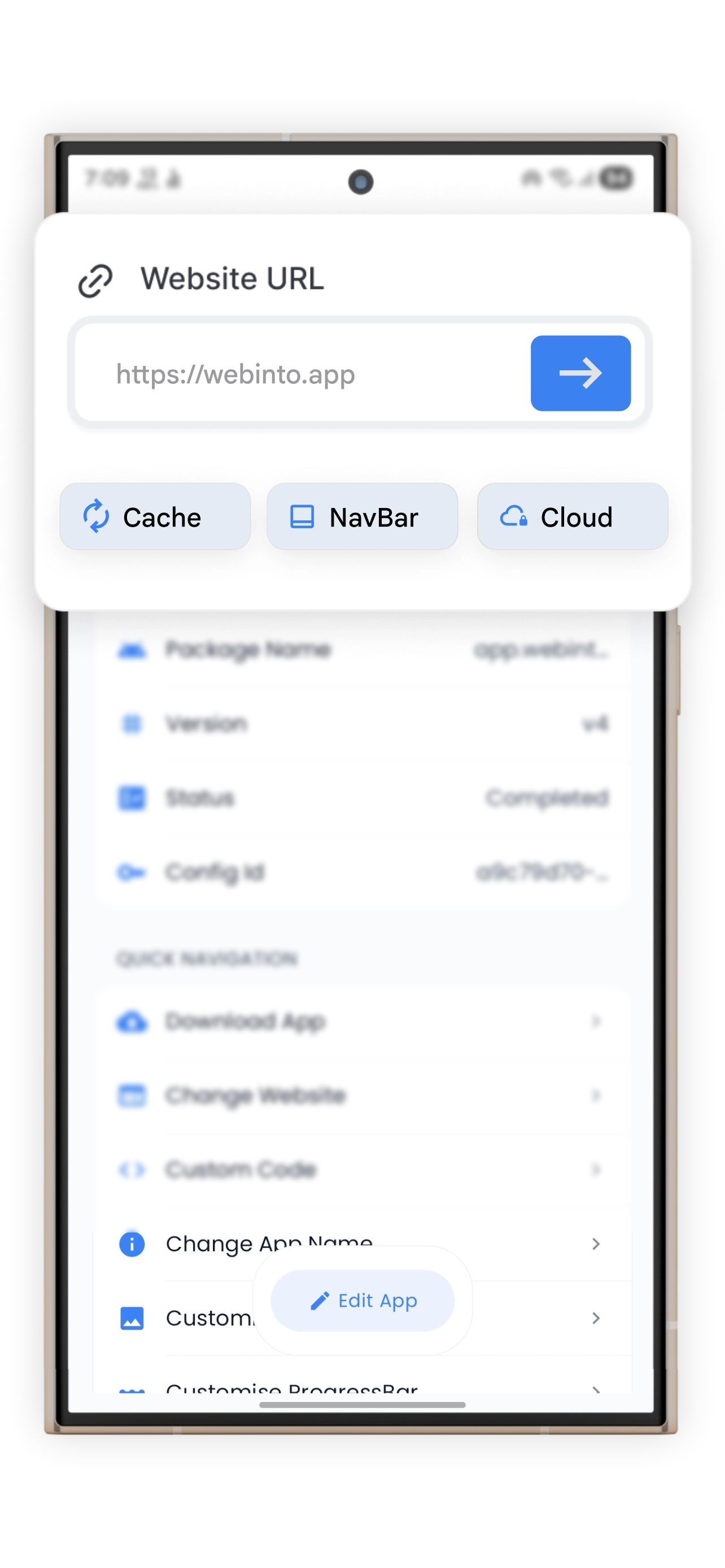
Download WebInto.app from the Play Store, tap "+ New App", and paste your PWA's URL.
Step 3: Configure the Native Shell
Even though your PWA handles most of the UX, WebInto.app's native shell gives you extra control:
Add a Bottom Navigation Bar
If your PWA has a navigation menu, consider duplicating its key sections as a native bottom navigation bar. This gives users the familiar Android navigation pattern without relying on your PWA's own navigation UI.
Set Your Splash Screen
Override your PWA's default splash screen with a fully branded one. Use your brand colors, your exact logo, and smooth transition animations.
Fine-Tune the WebView
Configure your WebView settings for your PWA:
✅ Enable JavaScript
✅ Enable DOM Storage (required for most PWAs)
✅ Enable Service Workers
✅ Cache: Aggressive for repeat visits
Inject CSS for the Native Context
Your PWA might show a "Add to Home Screen" prompt or PWA install banner — you don't want that inside your native app. Suppress it with a CSS/JS injection:
// Suppress PWA install prompts inside the native app
window.addEventListener('beforeinstallprompt', (e) => {
    e.preventDefault();
});

// Optionally: tell your app it's running inside a native wrapper
window.IS_NATIVE_APP = true;
Your PWA's JavaScript can then check window.IS_NATIVE_APP to enable app-specific behaviors (hiding web-only elements, using different analytics events, etc.).
Step 4: Build and Test
Hit "Build App" and wait 2–5 minutes. Install the APK on your device and test:
- All PWA routes work correctly ✅
- Service worker and offline caching function as expected ✅
- Native back button navigates through history ✅
- App icon and splash screen look correct ✅
Step 5: Publish to Google Play
Submit your APK to Google Play — your PWA now has full Play Store presence. Write a compelling store listing: focus on the problems you solve rather than the technology stack.
SEO Strategy: Should You Have Both a PWA and a Play Store App?
Yes, absolutely. They serve different discovery channels:
- Your PWA is found via Google Search (web SEO), social sharing, and direct URL
- Your Play Store app is found via Play Store search, "best apps for X" blog posts, and word-of-mouth shares
Both contribute to your brand's total addressable audience. Having both is not redundant — it's additive.
Real-World Use Cases
Offline-First News PWA → Play Store App
A news publication running a PWA gains Play Store presence, which drives subscriptions from users who proactively search for news apps in their category.
SaaS Dashboard PWA → Native App
A B2B SaaS tool converts its responsive dashboard PWA to an Android app, enabling their business users to check metrics on the go with a native, launcher-accessible app.
E-commerce PWA → Play Store App
An online store running a PWA gains reliable push notifications for cart abandonment and flash sales — directly boosting revenue without a full native rewrite.
Conclusion
PWAs are a solid technology, but they come with real constraints on Android — particularly around Play Store distribution, push notification reliability, and install conversion rates. Converting your PWA to a native Android app with WebInto.app takes under 10 minutes, requires no code changes to your existing PWA, and unlocks the full Android ecosystem.
Your PWA does the heavy lifting. WebInto.app gives it a native home.
Ready to start?
Convert your website into an Android app
Install WebInto.app and build your APK in minutes. No coding required.