How to Convert Your WordPress Site to an Android App (No Coding)
WordPress powers over 43% of the internet — yet most WordPress site owners are missing out on a massive opportunity: having a native mobile app. Mobile users spend roughly 90% of their phone time inside apps, not browsers. If your audience is on mobile, and they are, converting your WordPress site to an Android app is one of the highest-ROI moves you can make in 2026.
This guide shows you exactly how to do it — without touching a single line of code, without expensive developers, and without waiting months for Play Store approval.
Why Convert Your WordPress Site to an Android App?
Before we get into the how, let's talk about the why — because the benefits go well beyond "having an app icon on someone's home screen."
1. Push Notifications (The #1 Reason)
Email open rates hover around 20%. Push notification open rates? Up to 90%. When you have an app, you can send direct push notifications to every user who has installed it — promotional campaigns, new posts, flash sales, anything.
2. Higher Engagement & Retention
App users visit 3× more often and spend 2× more time per session than mobile web users. Once your app is installed, you have permanent real estate on your user's phone.
3. Play Store Discovery
Google Play has 3+ billion active users. Publishing your WordPress app on the Play Store is free organic distribution — people searching for your niche can find your app there, not just your website.
4. Offline Content Access
With a WebView-based app, users can still browse cached pages even when they have a weak or no internet connection — a massive UX win for content-heavy WordPress sites.
5. No More Safari/Chrome Limitations
Mobile browsers restrict certain features (camera, microphone, storage). A native app shell removes those restrictions entirely.
What Kind of WordPress Sites Work Best?
Almost any WordPress site can be converted, but these categories see the biggest benefit:
| Site Type | Benefit |
|---|---|
| News / Blogs | Push notifications for new posts drives repeat traffic |
| WooCommerce Stores | App users have higher cart completion rates |
| Membership Sites | Better retention, higher LTV |
| Online Courses (LMS) | Native feel for video lessons, progress tracking |
| Portfolio / Agency | Professional image, stand out from competitors |
| Directory / Listing Sites | Faster load, better UX on mobile |
Step-by-Step: Convert WordPress to Android App with WebInto.app
Step 1: Get Your WordPress Site URL
You need your live WordPress site URL. Make sure:
- Your site is mobile-responsive (a responsive WordPress theme is required — most are)
- You're not blocking mobile crawlers or using maintenance mode
- Your site loads over HTTPS (required for app content)
💡 Pro tip: Before converting, add a mobile-responsive WordPress theme if you haven't already. We recommend Astra, GeneratePress, or Kadence — all free and lightning-fast.
Step 2: Download WebInto.app
Install the WebInto.app app from Google Play. It's the converter you'll use to configure, build, and download your APK.
Step 3: Create a New Project
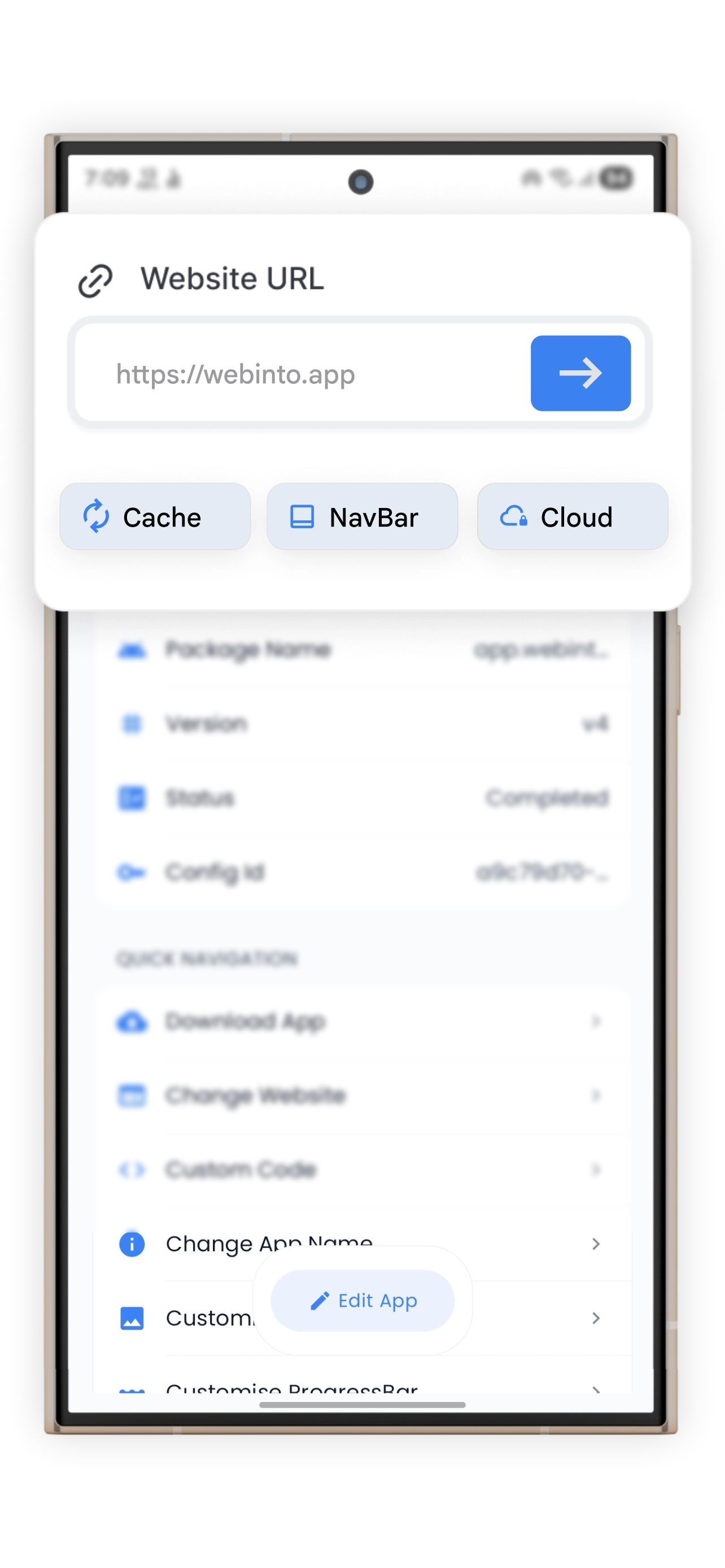
Open WebInto.app and tap "+ New App". You'll be asked to:
- Enter your WordPress site URL (e.g.,
https://yourblog.com) - Choose a project name (internal only)
WebInto.app will validate the URL and pull a preview of your site automatically.
Step 4: Configure Your App Settings
This is where the magic happens. WebInto.app gives you granular control over how your WordPress app looks and behaves:
App Identity
- App Name — appears under the icon on the home screen
- App Icon — upload a 512×512 PNG (your WordPress site's favicon or logo works great)
- Package Name — e.g.,
com.yourbrand.app(needed for Play Store)
Splash Screen
- Set your logo + background color for a branded loading screen
- Supports both light and dark modes
Navigation
- Add a bottom navigation bar with up to 5 tabs
- Each tab can link to a specific page of your WordPress site (e.g., Home, Blog, Shop, Contact)
- Completely native-looking — users won't notice this isn't a native app
WebView Configuration
- Cache strategy — aggressive caching for fast repeat loads
- JavaScript — enabled by default (required for most WordPress themes)
- Zoom — enable or disable pinch-to-zoom
- Full-screen mode — great for video content (YouTube embeds, etc.)
Custom CSS & JS Injection
This is a killer feature for WordPress apps. You can inject CSS to:
/* Hide the desktop top navigation bar inside the app */
#header, .site-header, .navbar {
    display: none !important;
}

/* Remove extra top padding since there's no browser URL bar */
body {
    padding-top: 0 !important;
}
This makes your WordPress site look truly native inside the app — not like a website crammed into a phone shell.
Step 5: Build Your APK
Tap "Build App". WebInto.app sends your configuration to the cloud builder and compiles your APK. The process typically takes 2–5 minutes.
Once complete, you can:
- Download the APK and install directly on your Android phone (sideloading) for testing
- Download the signed APK to upload to Google Play
Step 6: Upload to Google Play (Optional but Recommended)
To publish on the Play Store:
- Create a Google Play Developer account ($25 one-time fee)
- Create a new app in the Console
- Upload the APK (or AAB — WebInto.app supports both)
- Fill in your store listing: description, screenshots, category
- Submit for review (typically approved within 1–3 days)
Advanced Tips for WordPress App Users
Keep Content Fresh with Remote Updates
WebInto.app's Remote Update feature lets you change your app's URL, navigation tabs, and theme without publishing a Play Store update. This is essential for WordPress sites since your content is always changing.
WordPress + WooCommerce: Enable Deep Linking
If you run a WooCommerce store, configure your bottom navigation to link directly to shop pages, the cart, and wishlist. This reduces friction massively and increases conversion rates.
Handling WordPress Login
Most WordPress membership and LMS sites have login pages. WebInto.app handles cookies and sessions natively — users stay logged in across sessions, just like a real app.
Dark Mode Support
WebInto.app supports system dark mode. Combined with a CSS injection that enables your WordPress theme's dark mode, you get a premium dark-mode experience that feels completely native.
WordPress to App: Common Questions
Will my WordPress plugins still work? Yes. Since the app is loading your WordPress site inside a WebView, all your plugins — WooCommerce, contact forms, page builders, etc. — work exactly as they do on the web.
Do I need to install a WordPress plugin? No. WebInto.app works with your existing URL. You don't need to install anything on your WordPress server.
Will the app stay up to date with my WordPress content? Yes. Because the app loads live from your WordPress URL, every new post, product, or page update appears in the app instantly — no recompiling needed.
What's the maintenance overhead? Almost zero. WordPress updates, theme updates, and content changes all flow through to the app automatically.
Conclusion
Converting your WordPress site to an Android app has never been simpler. With WebInto.app, you skip the months of developer time, the thousands in agency fees, and the complexity of managing a separate native codebase. Your WordPress content, plugins, and SEO stay exactly where they are — and your users get a native, fast, app-store-worthy mobile experience.
Ready to get started? Download WebInto.app on Google Play and have your WordPress app live within the hour.
Ready to start?
Convert your website into an Android app
Install WebInto.app and build your APK in minutes. No coding required.