How to Convert a Website Into an Android App Without Coding
Your site works in Chrome. Your customers still ask for an app. You are not alone, and you do not need a dev team to close that gap. Web to app conversion wraps your existing URL in a real Android shell so people install you from the home screen or Play Store, not only from a bookmark.
This guide shows how to convert website to app without coding, using the WebInto.app Android builder (the same flow as our video tutorial). You will go from website URL to installable APK and AAB, with room to customize links, permissions, splash screens, and more before you publish.
Why a Website-to-App Beats “Add to Home Screen” Alone
A no code app builder still produces a native package. That matters for three reasons.
First, you get Play Store distribution and a proper app drawer icon. Second, you can add native pieces a browser shortcut cannot: bottom navigation, push notifications, controlled downloads, and signing keys for updates. Third, you keep one web codebase while the shell handles Android expectations (back button, splash, offline messaging).
| Approach | Play listing | Signed APK/AAB | Deep customization | Push (reliable) |
|---|---|---|---|---|
| Mobile bookmark | No | No | No | No |
| PWA | Limited | No | Some | Unreliable |
| Generic web wrappers | Sometimes | Sometimes | Basic | Varies |
| WebInto.app | Yes | Yes (APK + AAB) | Advanced (links, code, permissions by URL) | Yes (e.g. OneSignal) |
Many online web to apk tools stop at a single URL and an icon. WebInto.app is built as an Android app you install on your phone, so you can iterate in a dashboard, push remote updates for simple changes, and only rebuild when you need a new binary.
That difference sets up what you prepare before opening the builder.
What You Need Before You Convert Website to App
You only need four things to start.
A live website URL over HTTPS. Responsive layouts work best; fix obvious mobile layout breaks in the browser first.
A unique package name in mind (for example com.yourbrand.app). You set it during setup and it stays tied to Play Store updates.
An app icon (512×512 px is ideal for store graphics later).
Clarity on distribution. Testing on your own phone needs an APK. Google Play needs an AAB plus a keystore (JKS). WebInto.app delivers both in the download package so you are not hunting files on random forums.
Picture Priya, who sells online courses from a simple WordPress site. She wanted students to open lessons from an icon, not a browser tab. Her checklist was: HTTPS site, icon PNG, package name, and fifteen minutes with the builder. That is the bar you are aiming for.
How to Convert a Website to an Android App With WebInto.app
Install WebInto.app from Google Play, open it, and create a free account (Google sign-in or email works). The onboarding screens ask how you found the app; answer if you like, then land on the dashboard.
The steps below follow the same flow as our 2026 video tutorial.
Step 1: Create a new app from the dashboard
Tap Create app to open the wizard.
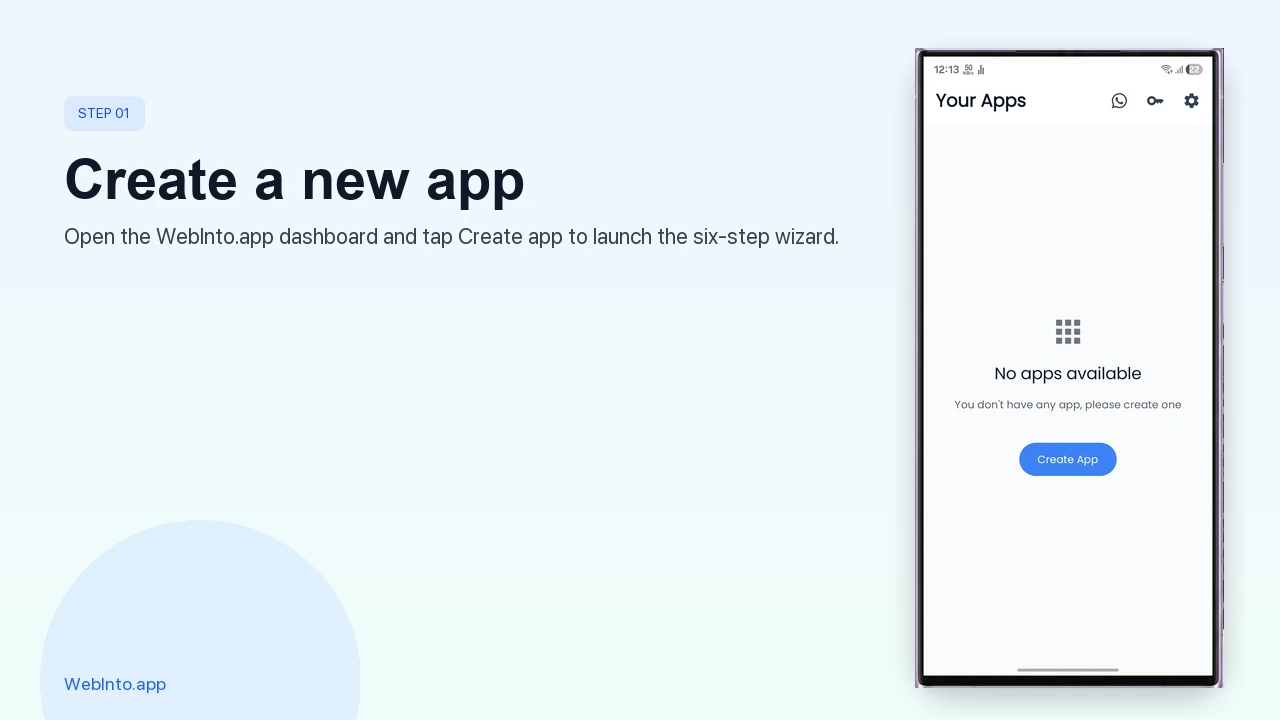
From the home screen, tap Create app to launch the six-step wizard.
Step 2: Enter your website URL
Paste the URL you want inside the app (shop, blog, SaaS, landing page). This is the web content your shell will load.
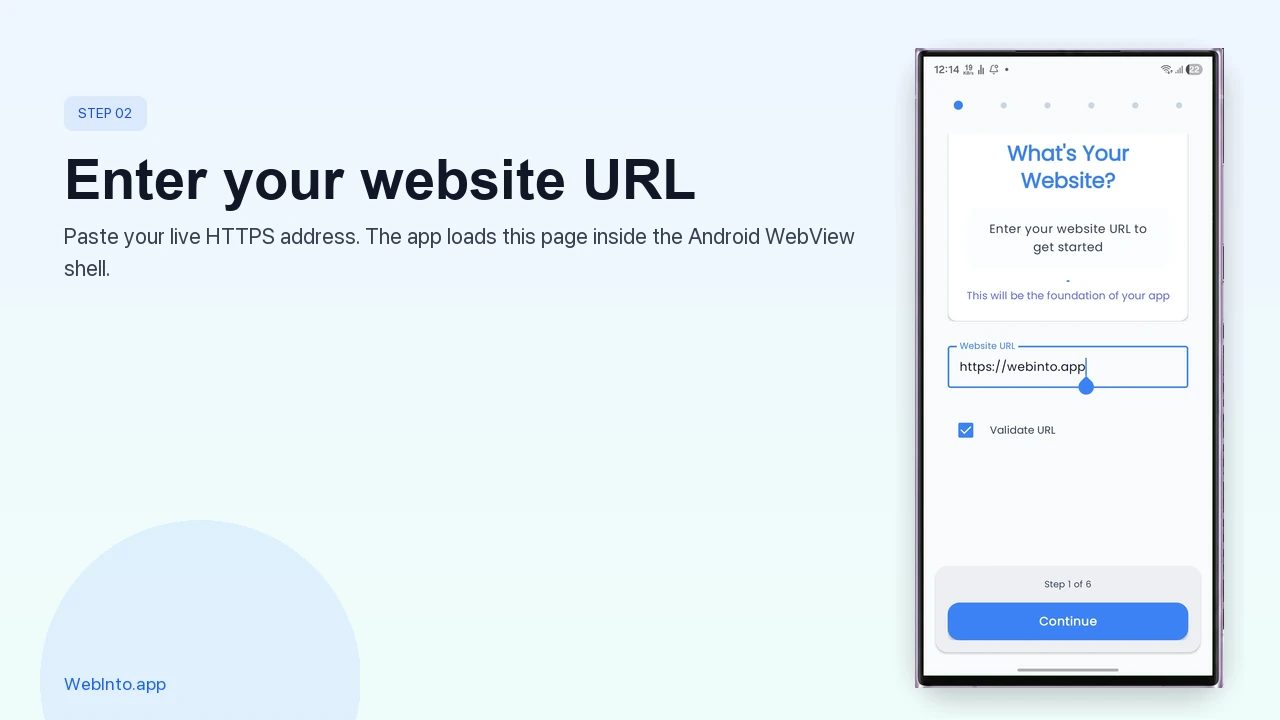
Paste your live HTTPS address. The app loads this page inside the Android WebView shell.
Step 3: App name and package name
Set the customer-facing app name and a unique package name for Play Console. If the name is already taken on Play, pick another package; it must stay stable after launch.
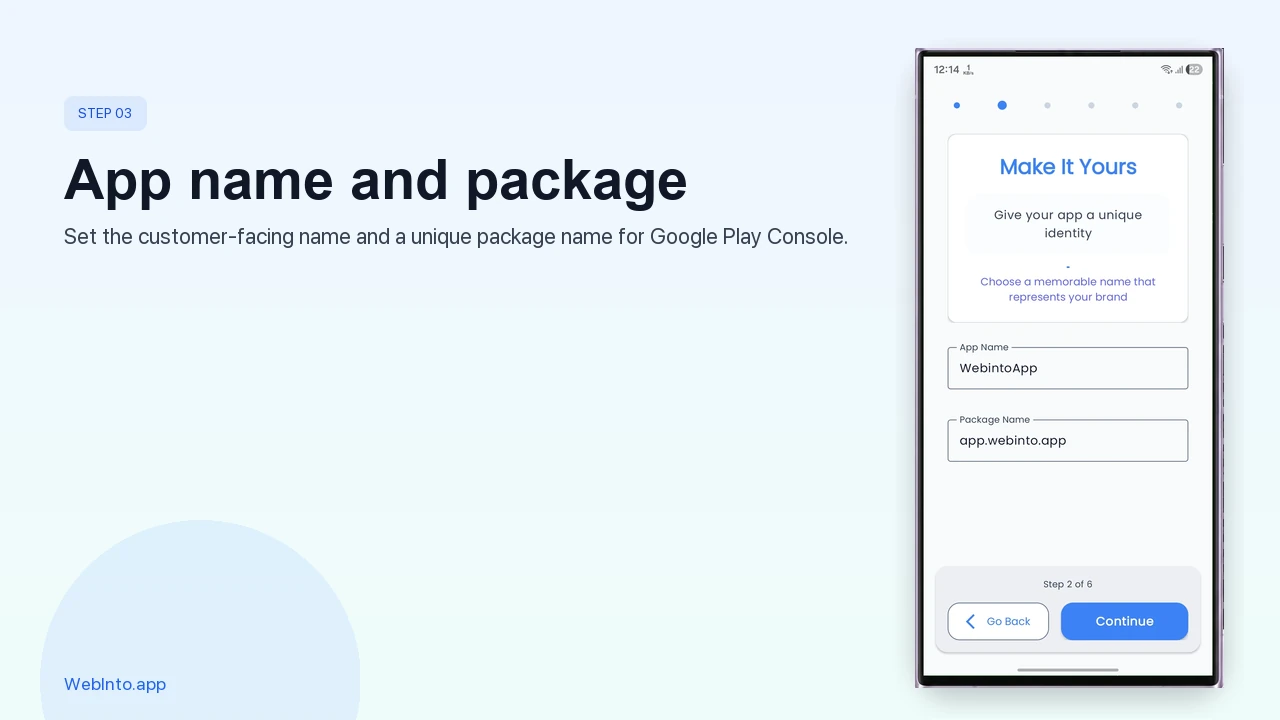
The package name (for example com.yourbrand.app) is permanent once you publish to Google Play.
Step 4: Icon, primary color, theme, and loading style
Upload your launcher icon. Choose primary color, light/dark/system theme, optional dynamic colors, and a loading animation (top, center, or bottom). These polish the first launch before your web content appears.
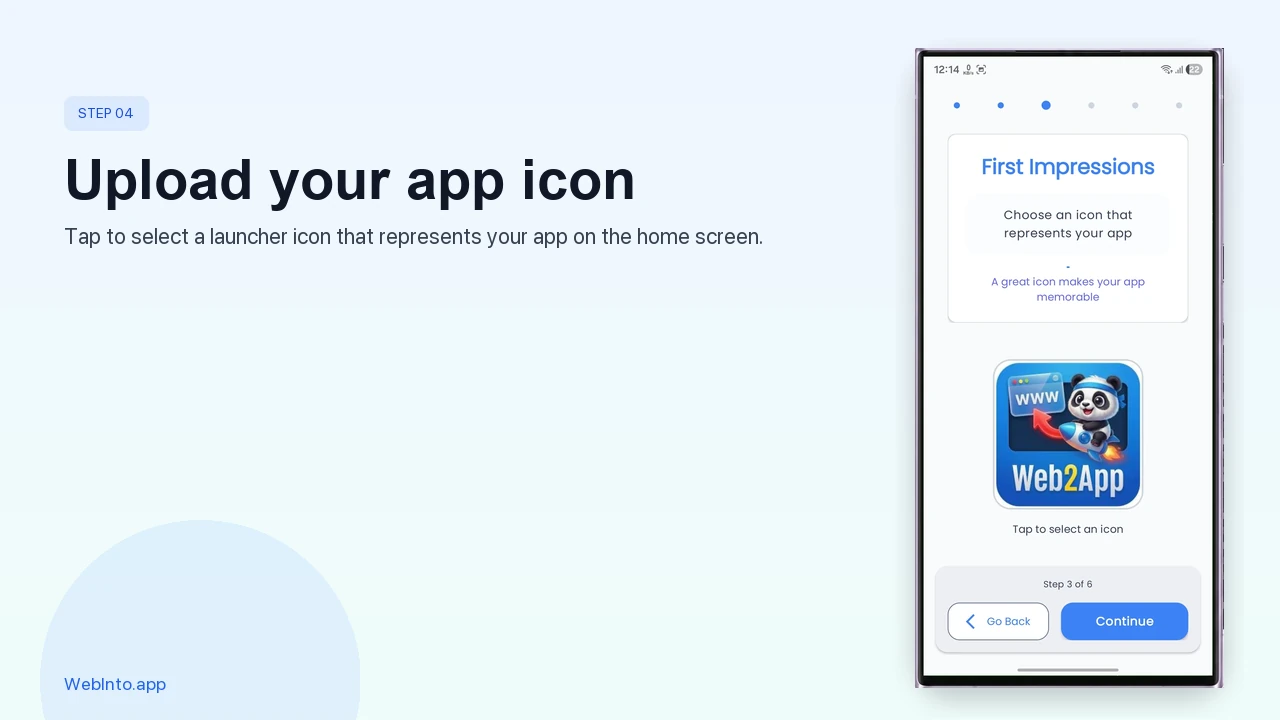
Tap to select a launcher icon that represents your app on the home screen.
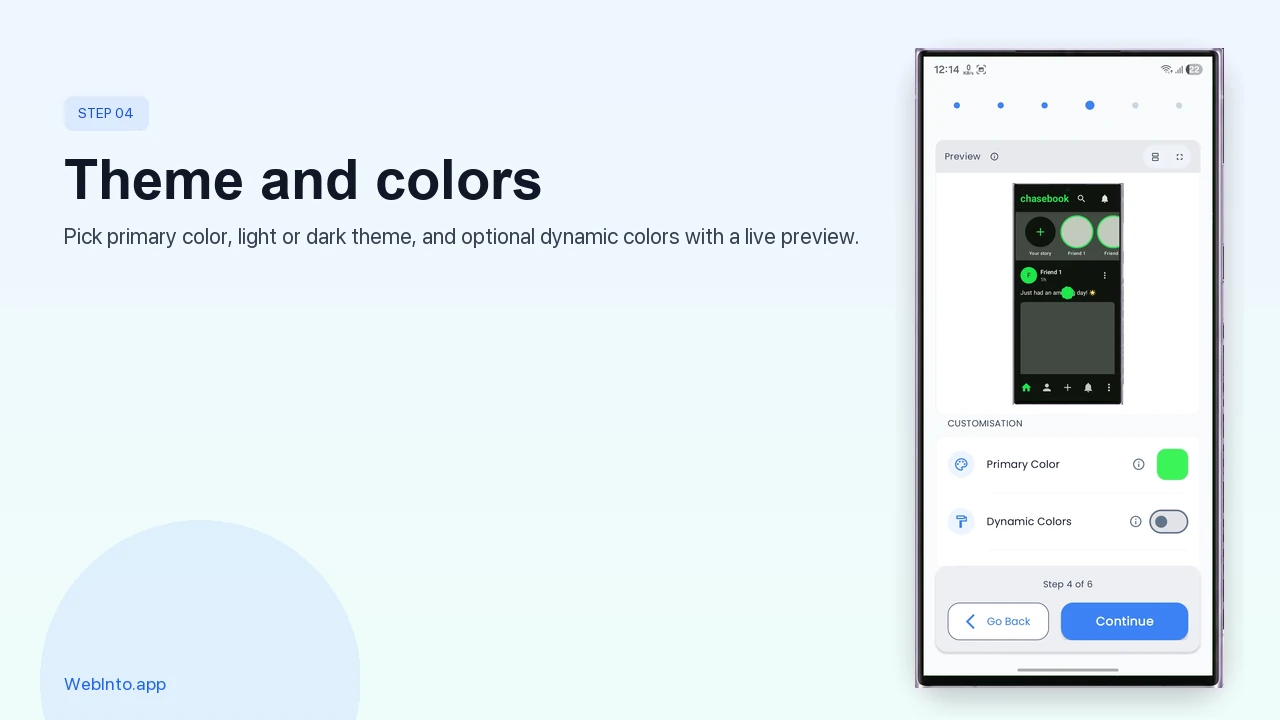
Primary color, theme mode, and dynamic colors update the live preview before you continue.
Step 5: Pick a splash screen
Select a splash template (simple splash or onboarding-style). You can switch designs later or use custom HTML splash editing for full control over layout and timing.
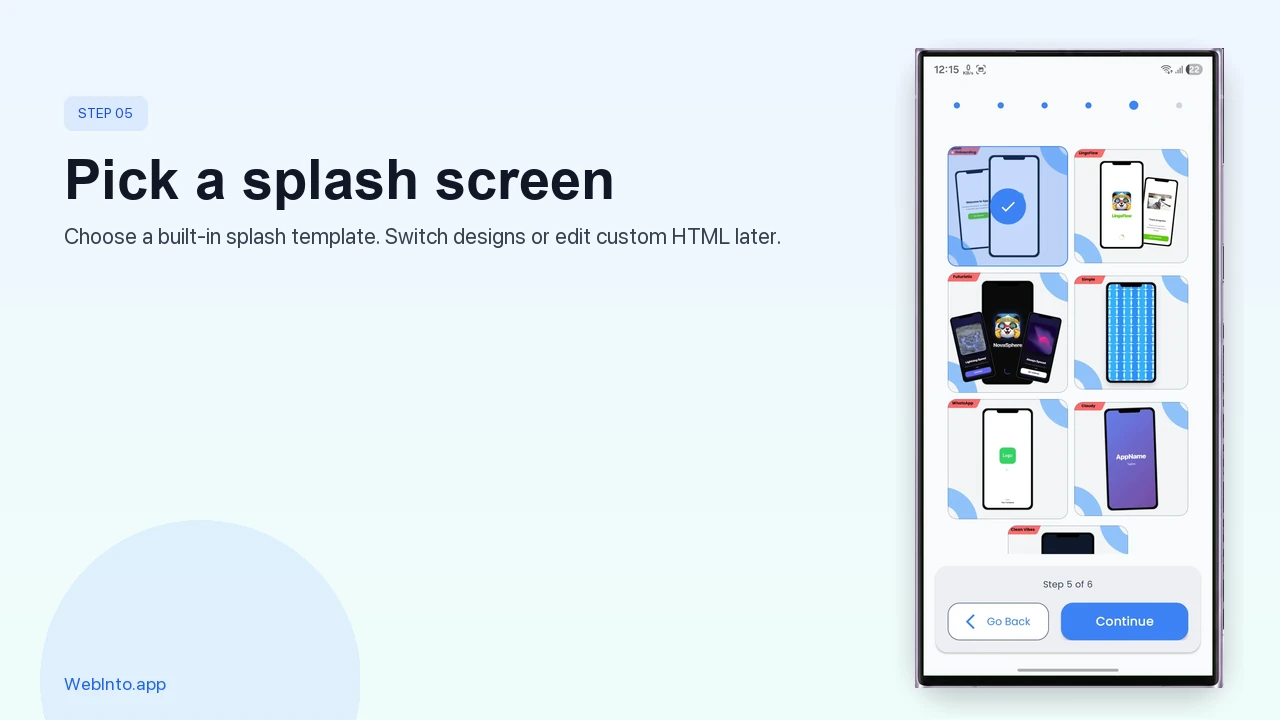
Pick a built-in splash design now; you can switch templates or edit custom HTML later from the dashboard.
Step 6: Enable plugins (navigation, edge-to-edge, cache)
Turn on extras such as bottom navigation, edge-to-edge layout, and cache behavior. Grant permissions the plugins need. Then tap Create app and wait for the first build.
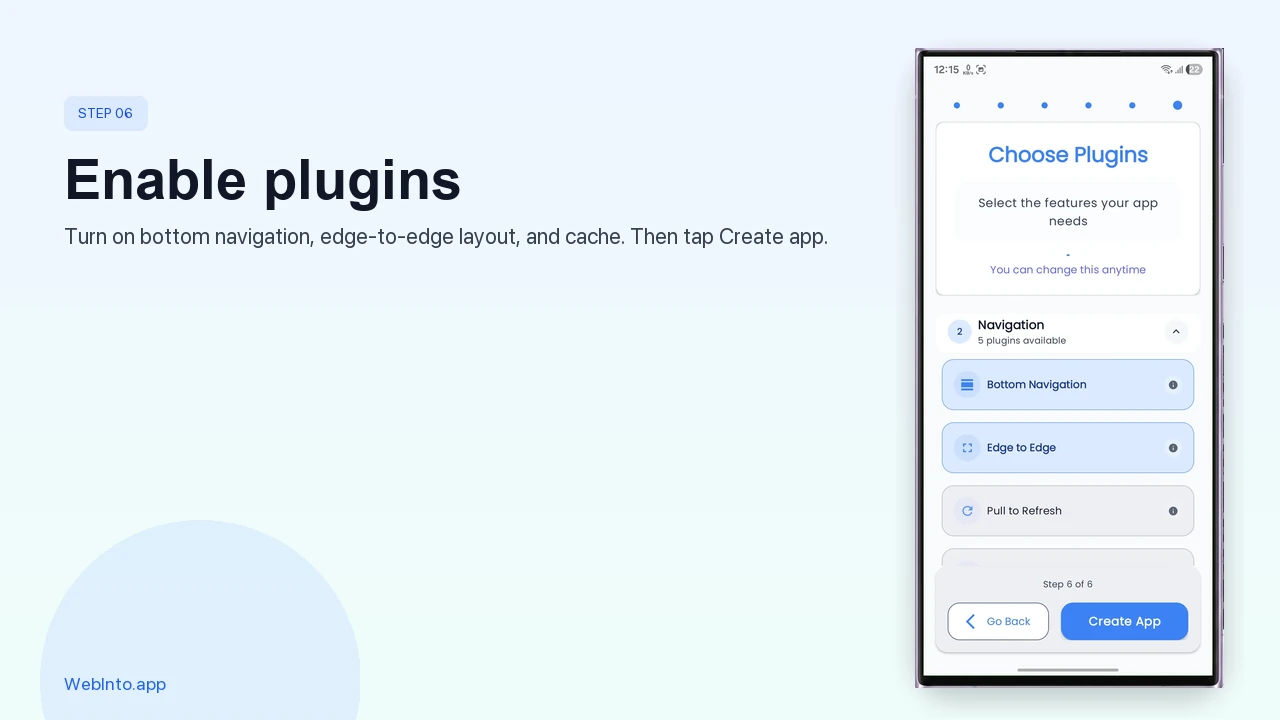
Toggle plugins such as bottom nav and cache, grant any requested permissions, then tap Create app.
Step 7: Preview, then build
Open Preview from the top bar to see your site inside the shell. When you are happy, use Build. You can explore customization before paying; a one-time plan per app unlocks full downloads when you are ready.
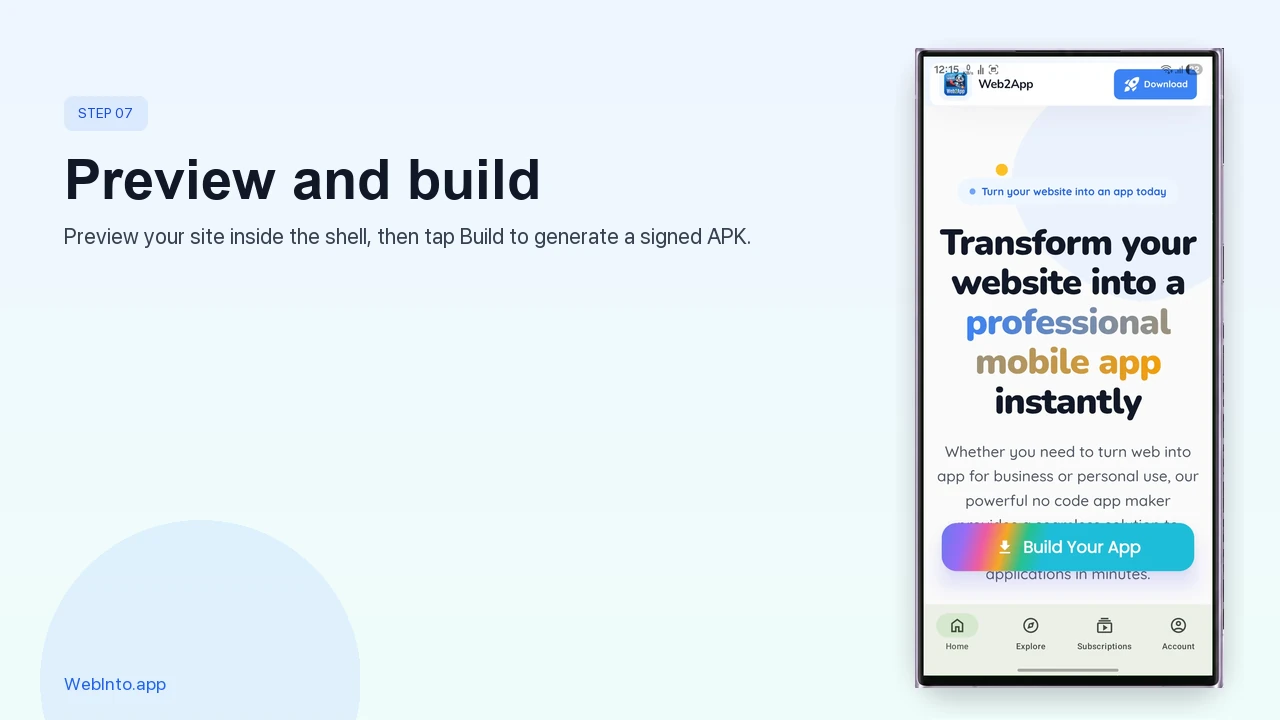
Use Preview to test on your phone before you purchase a plan and download signed files.
Changing the URL later does not always require a new APK: edit the site address in the dashboard, save, and preview again. That is a remote update for configuration, not a full rebuild.
Those steps cover the core convert website to app path; the next section is where WebInto.app pulls ahead of lighter web to apk sites.
Advanced Controls Many No-Code Builders Skip
After creation, open Edit app from the dashboard. You will see sections for app info, build status, settings, navigation, and more.
Remote updates (no rebuild for simple changes)
Update web URL, toggles, and many dashboard fields, then save. You only need a fresh APK or AAB when native behavior, permissions, or store-facing binaries change. That saves time when you fix a typo in your domain or swap staging to production.
Swipe to refresh, progress bar, and navigation bar
Enable pull-to-refresh so users can reload stale pages. See our swipe to refresh tutorial for setup in the dashboard. Add a top progress bar while pages load. Customize the bottom navigation bar: icons from a large built-in library, labels, colors, and per-tab URLs (the main video shows retargeting a tab to Google as an example).
Links: block, force internal, or open in Chrome
Under Links, set rules by pattern:
- Disallow URLs you never want opened in the app.
- External links that should open in the browser (Play Store rating pages are a common case).
- Internal links you want to keep inside the WebView even if they would normally leave your domain.
That level of control is rare in basic website to app converters.
Downloads and permissions with URL rules
Allow file downloads in the shell, or block download hosts you do not trust. Pair permissions (camera, storage, location) with allow/disallow URL lists so sensitive pages request access only where it makes sense.
Custom CSS and JavaScript (with URL scope)
Inject custom code to fix real-world layout issues. The tutorial shows edge-to-edge mode pushing content under the status bar; a few lines of CSS add safe padding at the top. You can scope injections to matching URLs so checkout keeps your styles but your blog stays untouched.
Custom no-internet screen (HTML)
Use the built-in editor or full custom HTML for offline and error states, with dynamic placeholders and a native reload action. See our guide on custom HTML no-internet screens for copy-paste examples.
Native web APIs: share, clipboard, print
Bridge features like Web Share, clipboard access, and printing behave more reliably inside a native wrapper than inside mobile Safari or Chrome tabs. Many competing builders never expose these hooks.
Push notifications (OneSignal)
Connect push through OneSignal so marketing and transactional messages reach installed users. Watch the push notifications feature walkthrough for in-app setup, or read our OneSignal + WebInto.app tutorial for SDK integration on your site.
Deep links and splash templates
Configure deep links so marketing URLs open the right page inside the app. Our deep links tutorial walks through URL schemes and testing on a device. Revisit splash templates or HTML to match rebrands without rebuilding from scratch when only assets change.
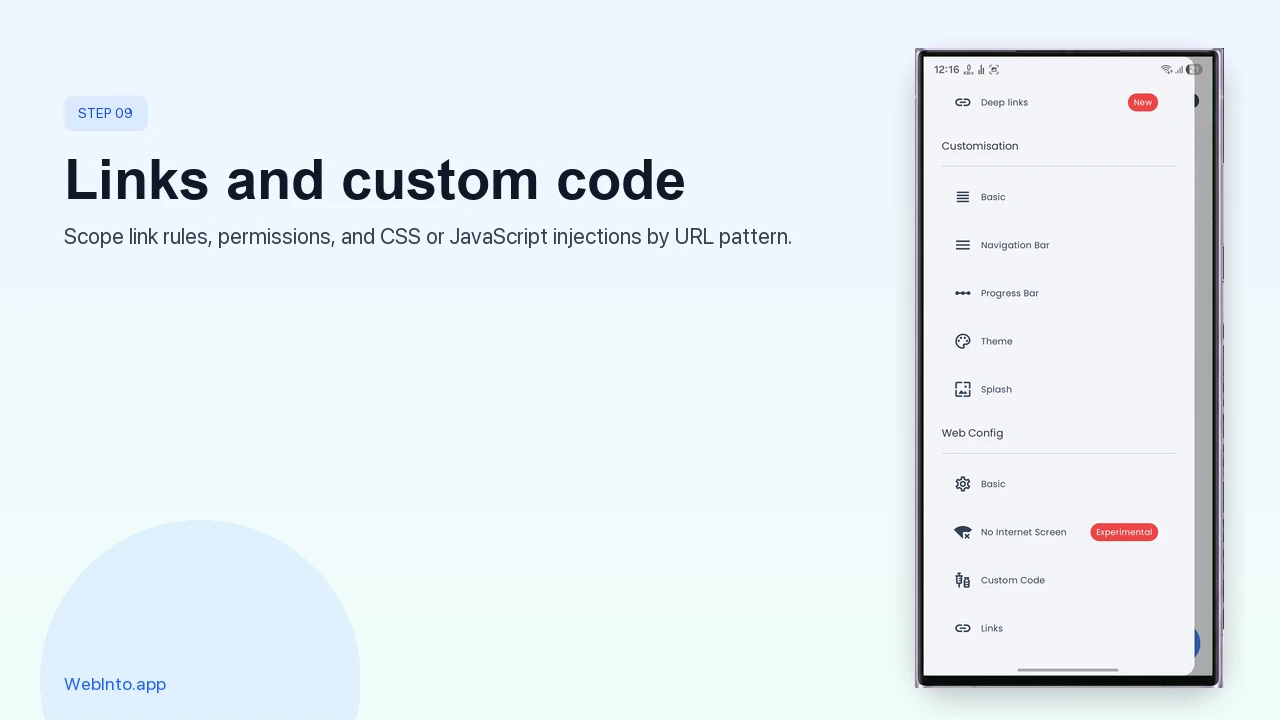
From Edit app, open Links, Permissions, or Custom code to scope rules and injections by URL pattern.
Together, these options turn a thin wrapper into something you can run as a product, not a demo.
Download Your APK, AAB, and Keystore (JKS)
When the build finishes, tap Download. You get a package that typically includes:
- Installable APK for testing on your phone
- AAB for Google Play production uploads
- app_keys.jks (or similar) for signing continuity
- A readme with basic instructions
Install the APK on a device, confirm it matches preview, then use the AAB and keystore when you follow a Play Store guide such as our how to upload on Google Play walkthrough.
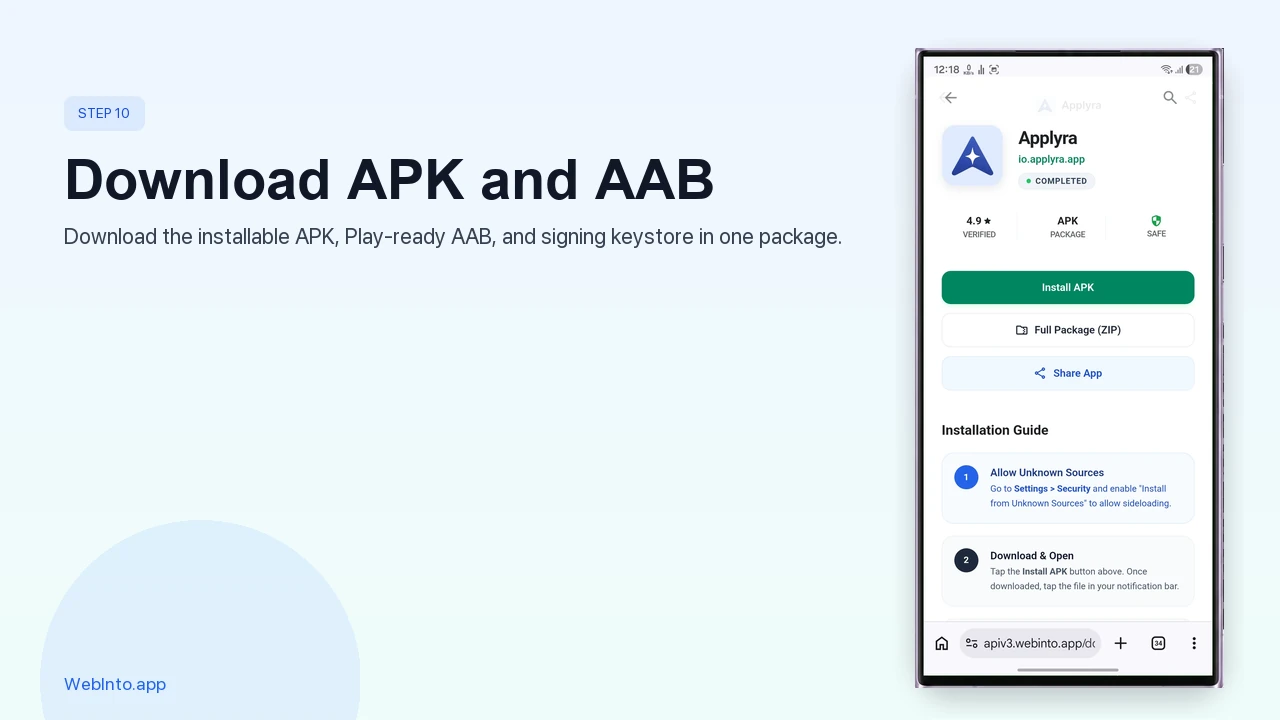
After a successful build, tap Download to get the installable APK, Play-ready AAB, and signing JKS in one package.
Store the JKS and passwords somewhere safe. Losing the key complicates updates to the same listing. If you already have a signing key from a previous build, follow our create or upload custom JKS key tutorial to attach it in WebInto.app before your next release.
How WebInto.app Compares to Other Website-to-App Tools
| Feature | Typical online converter | WebInto.app |
|---|---|---|
| Works as Android builder app | No (browser only) | Yes |
| Change site URL without new binary | Rare | Yes (remote updates) |
| Link rules (internal / external / block) | Basic or none | Per-URL rules |
| Custom CSS/JS with URL filters | Uncommon | Yes |
| Custom offline/error HTML | Template only | Editor + HTML |
| Native share / clipboard / print | Often missing | Supported |
| APK + AAB + JKS in one package | Varies | Yes |
| Bottom nav + progress + swipe refresh | Add-on or absent | Built in |
Tools like template-only APK generators or single-page wrappers are fine for quick demos. If you plan to ship, iterate, and publish, you want signing files, link control, and update flexibility in one place.
That comparison brings you to the finish line.
Conclusion: You Can Convert Website to App Without a Developer
Web to app is not magic. It is a signed shell around your existing web property, plus the native extras users expect. With WebInto.app, you walk a clear wizard (URL, branding, splash, plugins), tune behavior in a dashboard, and download APK, AAB, and keystore files when you are ready for the world, not only your own phone.
Start with Priya’s checklist: HTTPS URL, icon, package name, one pass through the wizard, then preview on a real device. Watch the full tutorial if you prefer video. When Play publishing is next, pair your AAB with a store listing and you are in business.
FAQ
What is the difference between web to app and web to APK?
Web to app describes turning a site into an installable Android experience (icon, shell, store listing). Web to APK usually means the output file you sideload on a phone. For Google Play you also need an AAB and a signing keystore (JKS). WebInto.app provides both bundle types plus keys in the download package.
Can I convert website to app if I only know my URL?
Yes. A no code app builder like WebInto.app asks for your URL, app name, icon, and package name in a wizard. You do not write Java or Kotlin. You should still test on a real device and adjust link rules or custom CSS if your layout needs padding under the status bar.
Do I need to rebuild the APK when I change my website content?
No for normal content updates. Pages served from your server update automatically inside the WebView. For changing the loaded URL, toggles, navigation, or injected code, WebInto.app supports remote updates from the dashboard. Rebuild when you change native plugins, permissions, or Play-required binary settings.
How does WebInto.app compare to hiring a developer?
A developer-built native app offers maximum flexibility at higher cost and longer timelines. Convert website to app with a WebView shell is faster and cheaper when your product already works on mobile web. WebInto.app adds link control, push, custom offline screens, and store-ready APK/AAB output so you stay closer to a product launch than a science project.
Is WebInto.app only for Android?
Yes. This guide and builder focus on Android APK and AAB. Your web site remains the content layer; the shell is Android-specific. For Play distribution, plan store assets and policy forms separately after you have a signed AAB.
Ready to start?
Convert your website into an Android app
Install Web2App and build your APK in minutes. No coding required.