OneSignal SDK in JavaScript for WebInto.App: Web Bridge & User-Agent Tips
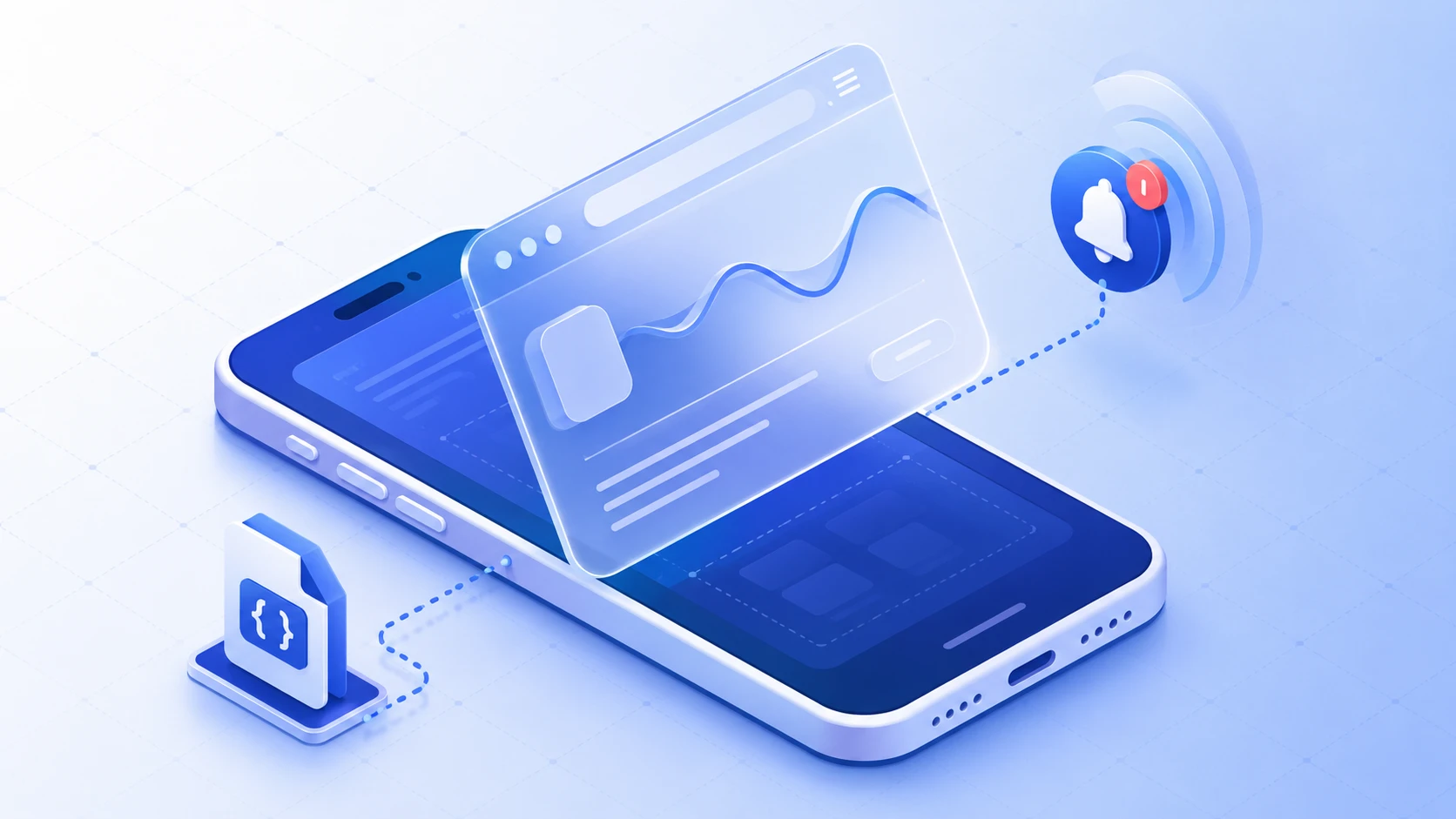
If you ship a website inside WebInto.app (a WebView-based Android app), you often need push notifications and per-user targeting without loading the full OneSignal Web SDK the same way you would in desktop Chrome. WebInto.app exposes a native JavaScript bridge so your page JavaScript can call OneSignal helpers that already run in the app—login, logout, and read the current user or push subscription state.
This tutorial explains how to call that bridge from JavaScript, what each action does, and how to detect WebInto.app reliably (including a custom User-Agent pattern) so you only run bridge code in the app and keep normal browser behaviour elsewhere.
Why use the native bridge for OneSignal in WebInto.app?
| Approach | In WebInto.app WebView | Typical use |
|---|---|---|
Native oneSignal bridge |
Talks to the app’s already-initialised OneSignal SDK | Login after auth, logout on session end, read externalId / push state |
| OneSignal Web SDK only | May conflict or duplicate with native init | Better suited to pure browser sites |
OneSignal must already be initialised in the native app. The bridge does not replace init on the native side—it lets your loaded web content coordinate with it.
Tip: Custom User-Agent to detect WebInto.app in JavaScript
A practical pattern is to append a stable token to the WebView’s normal User-Agent string in your app settings (for example at the end of the default agent):
… Mozilla/5.0 … Chrome/120.0.0.0 Mobile Safari/537.36 WebIntoApp/1.0Then in your site JavaScript you can branch before calling any WebInto-only APIs:
function isWebIntoApp(ua = navigator.userAgent) {
    // Match the exact suffix you configure in the app (version bump when you change behaviour)
    return /WebIntoApp\/\d/i.test(ua);
}

async function initNotificationsForContext() {
    if (isWebIntoApp()) {
        // Safe: native bridge + OneSignal are available in the packaged app
        await callOneSignalBridge({ action: 'GET_USER_STATE', payload: null });
        // … wire LOGIN after your own sign-in, etc.
        return;
    }

    // Normal website / desktop / other WebViews: use your standard path
    // e.g. OneSignal web init only if you intentionally support it, or no-op
    console.info('Not inside WebInto.app — skipping native OneSignal bridge.');
}
Guidelines:
- Pick one token (e.g.
WebIntoApp/1.0) and document it for your team; bump the version when you make breaking bridge changes so you can migrate pages gradually. - Never rely on User-Agent alone for security—it is spoofable. Use it only for UX branching (which SDK path to load). Authentication and secrets still belong on your server and in the native app.
- Combine with
window.Native/waitForNativechecks so you do not call the bridge before the WebView has injected the interface.
OneSignal Web Bridge overview
Web content loaded inside the client app can talk to native OneSignal helpers through the same JavaScript bridge pattern used elsewhere (for example the web bridge in the custom HTML no-internet screen guide). The handler is registered under the method name oneSignal.
Use this bridge when you need to:
- associate the current device with a user after sign-in (
LOGIN); - clear that association on sign-out (
LOGOUT); - read the current OneSignal identifiers and push subscription snapshot (
GET_USER_STATE).
Calling from JavaScript
The app exposes window.Native.call(methodName, paramsObject). The second argument is serialized to JSON and parsed on the native side.
Method name: oneSignal
Params object shape:
| Field | Type | Required | Description |
|---|---|---|---|
action |
string | Yes | One of: NONE, LOGIN, LOGOUT, GET_USER_STATE (matching is case-insensitive). |
payload |
object or null |
No | Extra data. Required for LOGIN (see below). |
Example with the same “wait for native” pattern as other public guides:
async function callOneSignalBridge(body) {
    if (typeof window.waitForNative === 'function') {
        const ready = await window.waitForNative(2000);
        if (!ready) {
            console.warn('Native bridge not ready');
            return null;
        }
    } else if (!window.Native) {
        console.warn('window.Native is not available');
        return null;
    }
    return window.Native.call('oneSignal', body);
}
Response format
The native side returns a JSON string (your bridge layer may already parse it to an object). Shape:
| Field | Type | Description |
|---|---|---|
status |
boolean | true if the action succeeded. |
message |
string or omitted | Human-readable error when status is false. |
params |
object or omitted | Extra data; populated for GET_USER_STATE (see below). |
Actions
NONE
No-op. Confirms the bridge is reachable.
Request
{ "action": "NONE", "payload": null }Response
{ "status": true }LOGIN
Maps the device to a user in OneSignal using the native login helper (external id).
Request
payloadmust include a non-empty stringuserId(this is the value passed to native as the external user id).
{
  "action": "LOGIN",
  "payload": { "userId": "user-123" }
}
Response
- Success:
{ "status": true } - Failure (missing or blank
userId):{ "status": false, "message": "please send non-empty userId in payload for login." }
LOGOUT
Clears the user association on the device using the native logout helper.
Request
{ "action": "LOGOUT", "payload": null }Response
{ "status": true }GET_USER_STATE
Returns a snapshot of the current OneSignal user and push subscription fields.
Request
{ "action": "GET_USER_STATE", "payload": null }Response
On success, params is a JSON object with the following fields:
| Field | Type | Description |
|---|---|---|
externalId |
string or null |
OneSignal external id if logged in. |
oneSignalId |
string or null |
OneSignal user id. |
pushSubscriptionId |
string or null |
Push subscription id. |
pushToken |
string or null |
Push token when available. |
isPushOptedIn |
boolean | Whether the user is opted in for push on this subscription. |
Example (illustrative values):
{
  "status": true,
  "params": {
    "externalId": "user-123",
    "oneSignalId": "...",
    "pushSubscriptionId": "...",
    "pushToken": null,
    "isPushOptedIn": true
  }
}
In page JavaScript you can derive:
- Logged in →
params.externalId != null - Has a push subscription id →
params.pushSubscriptionId != null
Invalid requests
If the params string cannot be parsed into a valid action (or the JSON is malformed at the bridge layer), the handler responds with:
{
  "status": false,
  "message": "please send valid parameters see docs."
}
Full flow example (login then read state)
await callOneSignalBridge({ action: 'LOGIN', payload: { userId: 'user-123' } });
const raw = await callOneSignalBridge({ action: 'GET_USER_STATE', payload: null });
// If your environment returns a string, parse it:
const result = typeof raw === 'string' ? JSON.parse(raw) : raw;
if (result.status && result.params) {
    console.log('External id:', result.params.externalId);
}
Summary
WebInto.app + OneSignal + JavaScript fits together when you: (1) detect the app with a custom User-Agent suffix and window.Native, (2) call Native.call('oneSignal', { action, payload }) for LOGIN, LOGOUT, and GET_USER_STATE, and (3) rely on WebInto.app to handle OneSignal setup on the device.
To reload the WebView or use other non-OneSignal actions, use the web bridge (for example RELOAD) as in the custom HTML no-internet / error screen guide.
If you have questions about WebView bridges, custom HTML error screens, or push setup, explore the other articles in the Tutorials category on this blog.
Ready to start?
Convert your website into an Android app
Install WebInto.app and build your APK in minutes. No coding required.